The Purchase Requisitions Module in Cerev CMMS Is Now Open
Chang

Ask a maintenance team how a spare part gets bought and the answer is rarely a system. A technician finds the bearing running hot, the supervisor messages the manager, the manager forwards a quotation to the plant manager, and somewhere along the way a paper form gets signed. Three weeks later nobody can say which machine that RM3,570 was for, or who agreed to it.
Purchase Requisitions in Cerev CMMS started as a module built alongside one manufacturing client's purchasing team. It has been reworked so it no longer carries that client's paperwork, and the module is now open. This post walks through what the module does, what changed in this release, and how a requisition moves from the plant floor to a signed PDF.
Every screenshot below comes from a demo project we set up for this post: a corrugated packaging plant with five departments, a three tier approval ladder and a year of requisitions behind it.

What Changed in This Release

The workflow itself, raising, approving and tracking requisitions, has been in the product for a while. What held it back was the printed document. The PDF export reproduced the original client's paper form on every export: their purchasing policy notes, their approval limits, a department checkbox grid, blank padding rows and a box to tick for new suppliers. Useful for them. Confusing for anyone else.
Everyone else now gets a client neutral requisition document:
- Your project name in the header, with Cerev branding by default, or your own logo if the project has uploaded one.
- The requisition's real details: department, category, priority, supplier and contact, location, equipment, work order, and the PO, DO and invoice numbers once they exist.
- Only the fields you filled in. Empty fields are left off rather than printed as blank lines.
- A sign off block built from the actual approval chain, with each approver's name and the date they approved.

The original client keeps its own form exactly as before. Nothing about their process changed. Everyone else simply stopped getting a document that was designed for someone else.
Raising a Requisition
Requisitions live under Purchasing, split across four tabs: Draft, Pending Approval, Approved and Rejected. The list shows the department, supplier, requester, date and total at a glance, and can be filtered by department, category, date or amount.

A new requisition asks for what a purchasing team actually needs to see: the department it comes from, the spend category, and the supplier. If quotations are still coming in, tick Vendor TBD / New Supplier and decide later.

The PR number is generated for you from the department code and the date. A requisition from Maintenance raised on 18 September 2026 becomes MAINT-18092620, so the number alone tells you where it came from and when.
Line items carry a quantity, unit, unit price and requested delivery date. Discounts can be set per line or on the whole requisition, and the grand total updates as you type. That grand total matters, because it is what decides who has to approve.
Every Ringgit Traces Back to a Machine

This is the part a standalone purchasing tool cannot do. Because requisitions live inside the CMMS, each one can be linked to the location, one or more pieces of equipment, and the work order that created the need.
In the demo plant, the bearing requisition points at Corrugator Line 1 and at work order WO-01842, “Single facer bearing running hot on CL-01”. Six months from now, when someone asks why so much was spent on that line, the answer is on the record, not in someone's inbox.
Approvals That Follow Your Own Rules

Most companies already have an approval policy. Small purchases go to the department head. Bigger ones need the plant manager too. Anything large needs finance. The problem is that the policy lives in a document, and people have to remember it.
In Cerev, that policy becomes a set of approval rules. Each rule covers a range of amounts in one currency and lists the approvers in order. When a requisition is submitted, Cerev matches its grand total against the rules and builds the approval chain by itself.
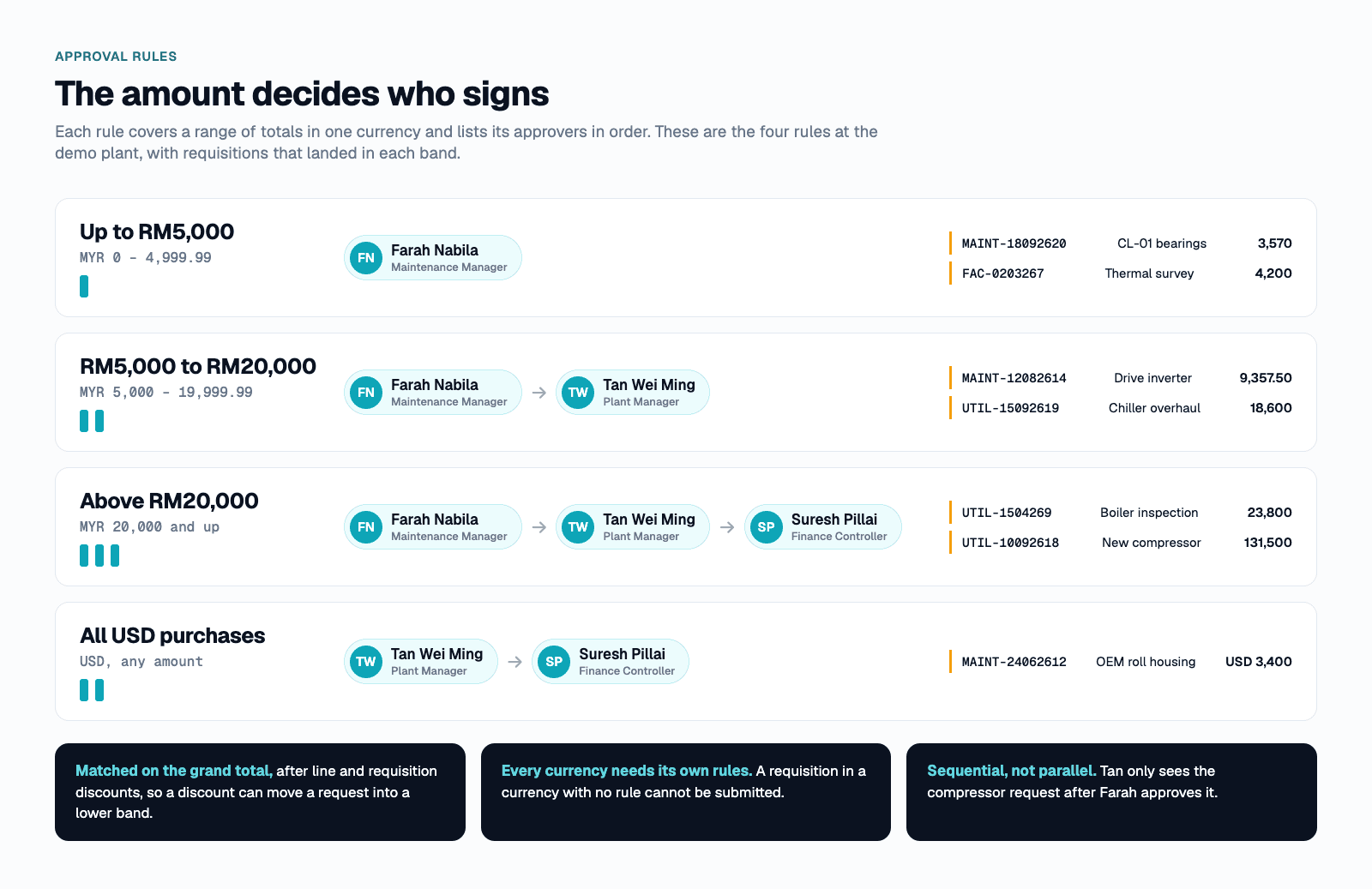
Approval is sequential. The plant manager only sees the new compressor request after the maintenance manager has approved it, and finance only sees it after that. Everyone sees where it currently sits, so the question “who is holding this up?” answers itself.
The approver gets everything needed to decide in one place: the status, the machine and work order behind the request, and the line items and total.
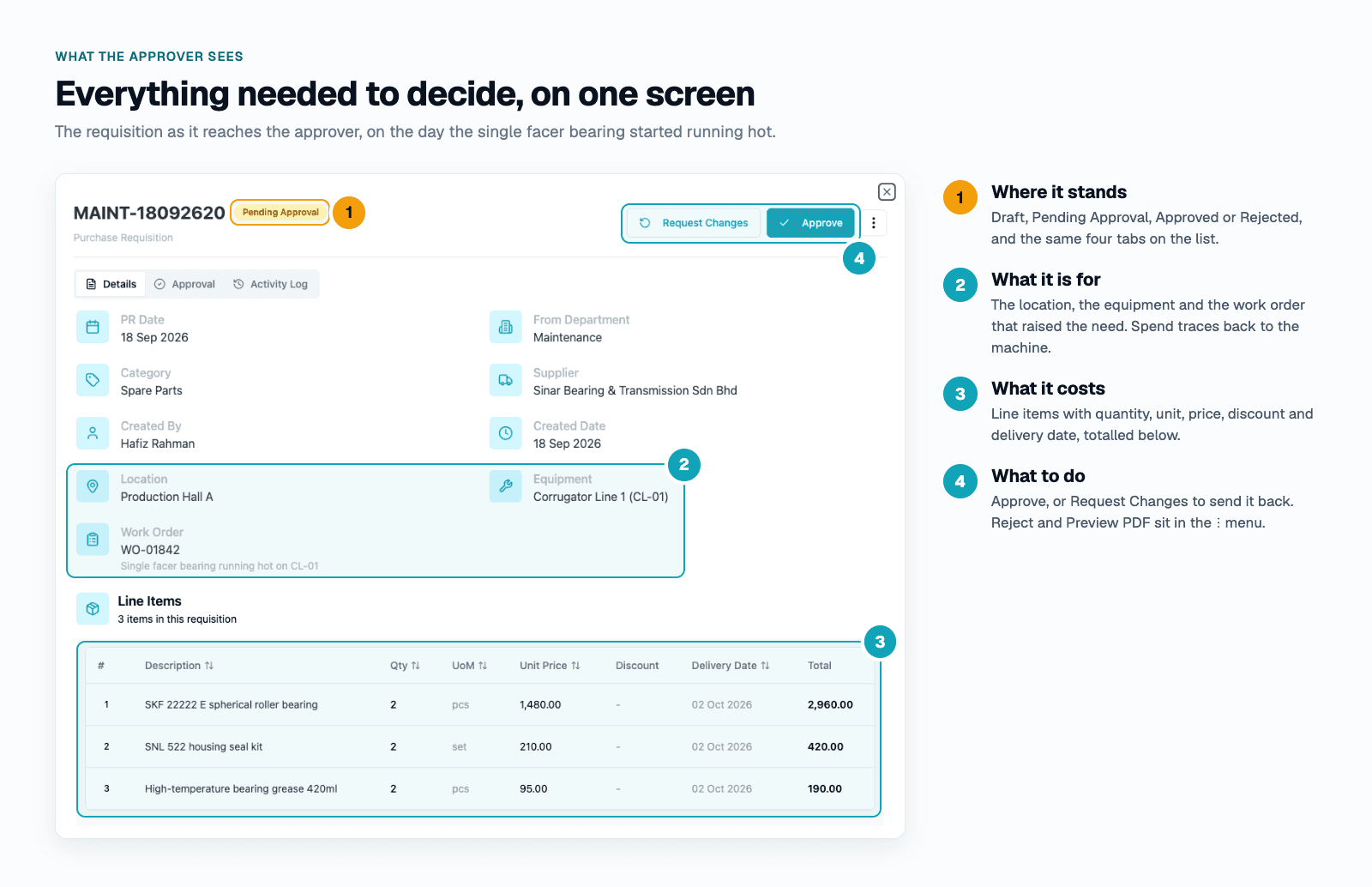
From there, the approver has three options:
- Approve passes it to the next level, or approves it outright if they are the last one.
- Request Changes sends it back to the requester as a draft, with a comment explaining what to fix.
- Reject closes it, and the reason stays on the record.
The requester has a way back too. If they spot a mistake after submitting, Pull Back returns the requisition to draft before anyone has approved it.
All of it works on the Cerev mobile app. An approver walking the plant floor can open the requisition, check the machine it is for, and approve it with one tap.

After Approval: One Record From Request to Invoice
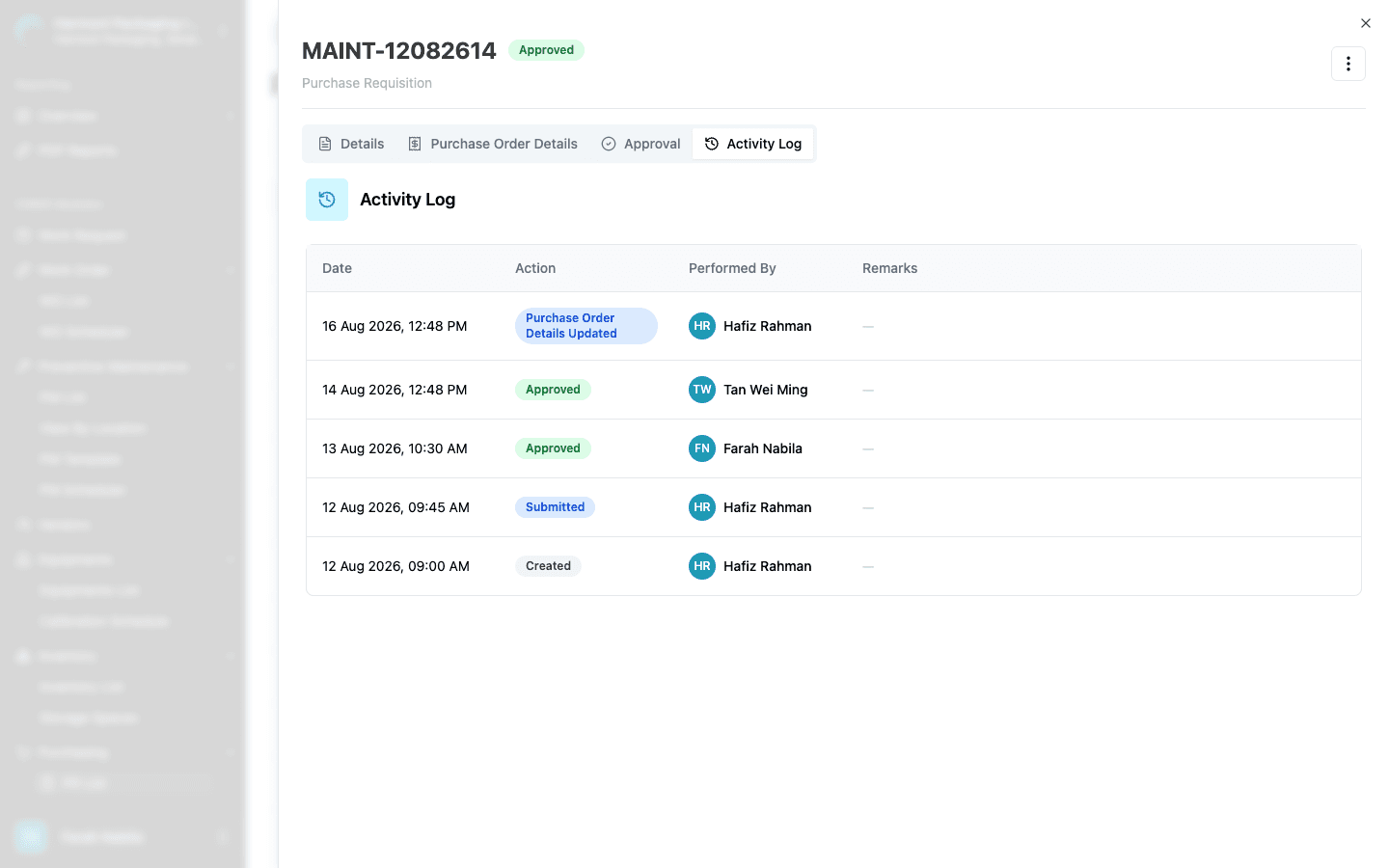
Once a requisition is approved, a Purchase Order Details tab appears. The purchase order, delivery order and invoice numbers go in as each one arrives, with the documents attached under the matching heading. The requisition, the PO and the invoice stop living in three different places.

The Activity Log records every step with who did it and when: created, submitted, each approval, and each update to the PO details. For an audit, that is the whole story of a purchase on one screen.
Seeing Where the Budget Went
The PR Analytics dashboard answers the questions that come up at every budget review: how much has been approved this year, which department spent it, and on what. Spending counts approved requisitions only, and each currency is reported separately rather than added together.

In the demo plant, April stands out immediately. That is the month of the boiler's annual inspection and descaling, and it shows up on the monthly trend without anyone building a spreadsheet.
Getting It Running on Your Project
Purchase Requisitions is switched on per project. Once it is enabled, setting it up takes an afternoon, not a consultant:
- PR Configuration. Add your departments with a short code each (the code becomes the PR number prefix), your spend categories, units of measure and currencies.
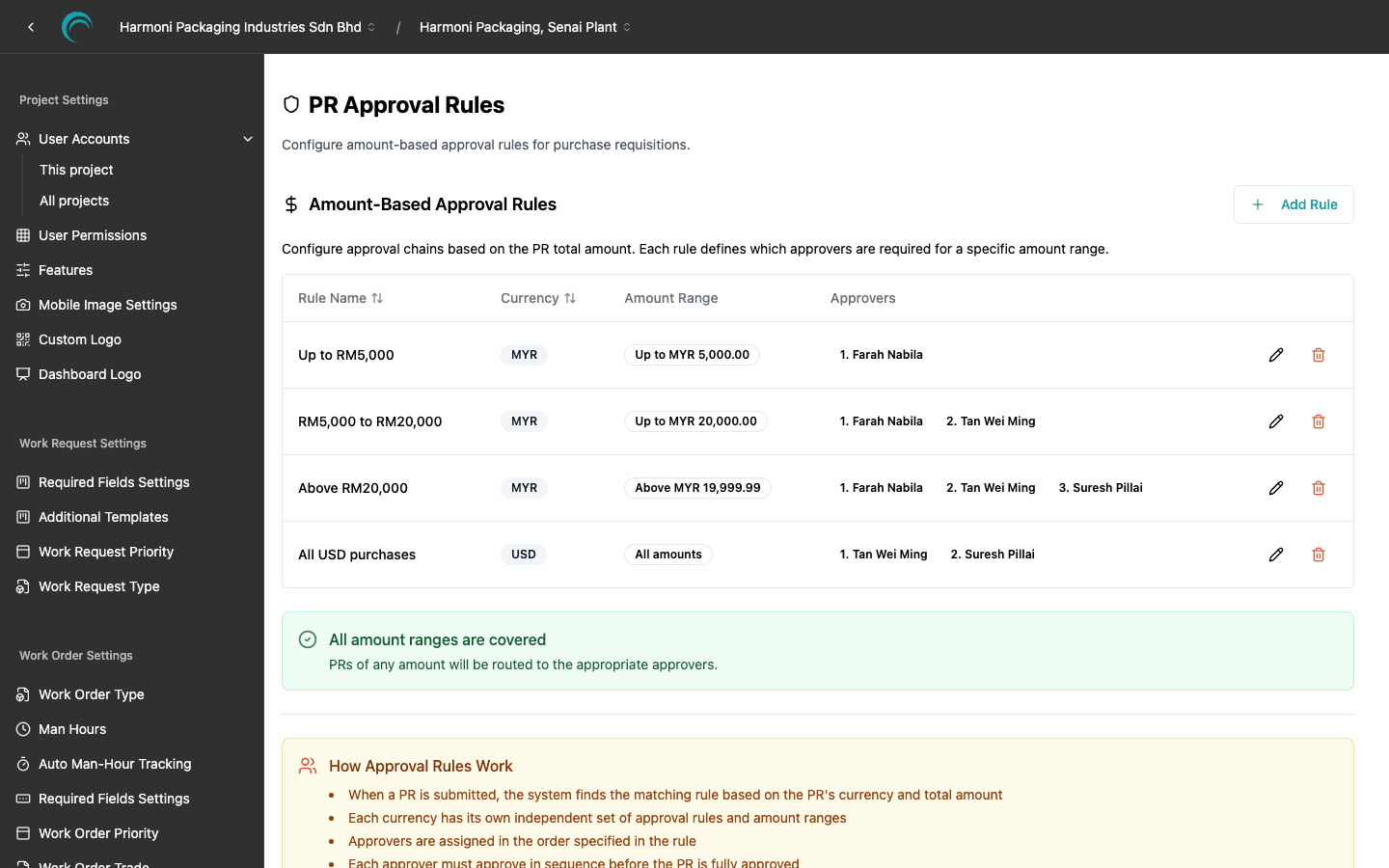
- PR Approval Rules. Turn your purchasing policy into amount ranges and approvers. The page tells you if any amount range or currency is left without a rule.
- Module access. Decide who sees the PR list and who sees PR Analytics, per user, under the existing user settings.
How Cerev CMMS Helps
Purchasing is where maintenance and finance meet, and it is usually where the paper trail breaks. Cerev CMMS keeps the requisition next to the work order and the machine it serves, routes it to the right people by your own rules, and hands finance a clean document and an honest spending report at the end.
If your team is still buying parts through messages and signed forms, ask us to switch Purchase Requisitions on for your project. The step by step setup guide is in the Cerev user documentation, and we are happy to help you turn your current approval policy into rules on day one.
Ready to optimize your maintenance operations?
Get in touch with our team to discuss how Cerev CMMS can help streamline your maintenance workflow and reduce costs.